AWS Secrets Manager Integration with ECS: A Complete Guide to Secure Secret Management for Production Environments
This post was written and edited with AI, then published after operator review. Thumbnails may also be AI-generated.
One of the most challenging aspects of running containerized applications in production is secret management. Hardcoding sensitive information like database credentials, external API keys, or certificates into code, committing them to Git repositories, or even injecting them as plain environment variables can lead to severe security vulnerabilities. These practices increase the risk of secret exposure and necessitate application redeployments whenever secrets need to be changed, adding to management complexity.
To achieve secure and efficient secret management, many teams adopt dedicated solutions like AWS Secrets Manager. It significantly enhances security by providing centralized secret management, lifecycle control, automatic rotation, and granular access control through IAM. Notably, it integrates tightly with Amazon ECS (Elastic Container Service), offering a robust mechanism for securely and dynamically injecting secrets into container applications. This article will delve into understanding the core architecture of integrating AWS Secrets Manager with ECS, covering practical setup methods and best practices.
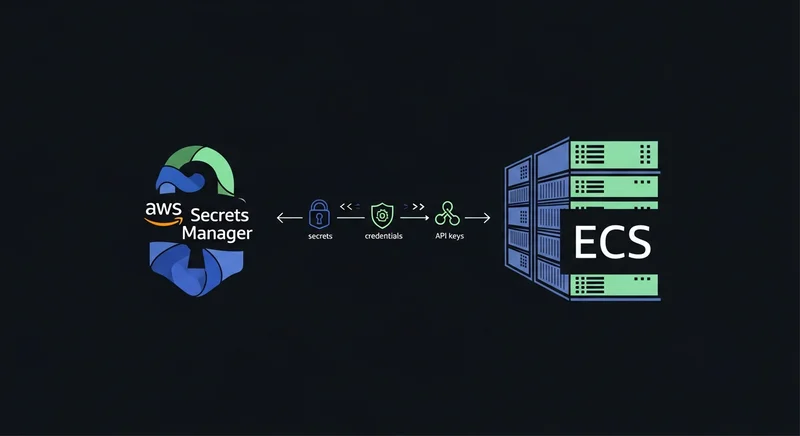
© AI Generated Image
Background and Problem Definition
With the widespread adoption of container environments, separating application configuration and secret information has moved from being an ‘option’ to a ‘necessity’. Traditional secret management methods suffer from clear limitations:
- Hardcoding in Code/Configuration Files: The most dangerous approach, as any compromise of the code repository exposes all secrets.
- Storing as Environment Variables (ENV) in Docker Images: Easily exposed via commands like
docker inspector by accessing the container internally. Secrets can also be stored in plaintext within image layers. - Using
.envFiles: Secrets are stored on the container host (EC2 instance), making them visible to anyone with access to the instance. File management and deployment also become cumbersome.
To address these issues, we must shift the responsibility of secret management to a secure, central repository outside the application. AWS Secrets Manager fulfills this role, and its native integration with ECS helps developers focus on business logic by abstracting away the complexities of secret management.
Core Architecture and Principles
The fundamental principle behind using AWS Secrets Manager secrets in ECS is the ECS Task Execution Role. The ECS Agent requires an IAM role (the Task Execution Role) to perform tasks such as pulling container images from ECR, sending logs to CloudWatch Logs, and retrieving secrets from Secrets Manager.
Our task is to grant this Task Execution Role the secretsmanager:GetSecretValue permission to access specific secrets. When a task starts, the ECS Agent uses this role to securely retrieve secret values from Secrets Manager and inject them into the container.
There are two primary methods for injecting secrets into ECS:
- Injecting as Environment Variables:
- This is the simplest and most common method.
- The
secretsproperty in the ECS Task Definition is used to map key-value pairs stored in Secrets Manager to environment variables within the container. - Advantage: Can be applied immediately without modifying the application code that already uses environment variables.
- Disadvantage: Secrets can be exposed within the container via
envorprintenvcommands, and in some sensitive systems, they might be accessible through process information (e.g.,/proc/[pid]/environ), offering relatively lower security.
- Mounting as a File:
- The entire JSON secret text stored in Secrets Manager is mounted as a file to a specific path inside the container.
- This involves using the
mountPointsandvolumesproperties in the ECS Task Definition, withsecretOptionsspecifying the Secrets Manager ARN. - Advantage: Secrets do not appear in the environment variable list, enhancing security. It’s also convenient for applications to parse the entire JSON secret with complex structures.
- Disadvantage: Requires additional logic in the application to read and parse files from the file system.
Both methods have their pros and cons. The appropriate choice depends on the application’s characteristics and security requirements.
Deep Dive into Practical Implementation: Code/Configuration
Let’s walk through the implementation process for a production environment. We’ll assume a scenario where we inject database connection information stored in a secret into an ECS container.
Step 1: Create a Secret in AWS Secrets Manager
First, create the secret that your application will use. We’ll store the database connection information in JSON format.
You can create it via the AWS Management Console or the AWS CLI.
# Example of creating a secret using AWS CLI
aws secretsmanager create-secret --name "prod/myapp/database" \
    --description "Database credentials for my application in production" \
    --secret-string '{
        "username": "myuser",
        "password": "<YOUR_SECURE_PASSWORD>",
        "engine": "postgres",
        "host": "<YOUR_RDS_ENDPOINT>",
        "port": 5432,
        "dbname": "mydatabase"
    }'
[🚨 Security Alert] Replace the <...> placeholders in the example above with actual values. It’s safer to use a file, like --secret-string file://my-secret.json, rather than typing the actual password directly into the command.
After creation, record the ARN (Amazon Resource Name) of the secret (e.g., arn:aws:secretsmanager:ap-northeast-2:123456789012:secret:prod/myapp/database-AbCdEf).
Step 2: Configure ECS Task Execution IAM Role Policy
You need to add permissions to the Task Execution Role to allow ECS tasks to access Secrets Manager. While the AmazonECSTaskExecutionRolePolicy managed policy is usually already attached, Secrets Manager access permissions must be added separately.
Create an inline policy like the one below and attach it to the Task Execution Role.
{
    "Version": "2012-10-17",
    "Statement": [
        {
            "Effect": "Allow",
            "Action": [
                "secretsmanager:GetSecretValue"
            ],
            "Resource": [
                "arn:aws:secretsmanager:ap-northeast-2:123456789012:secret:prod/myapp/database-AbCdEf"
            ]
        },
        {
            "Effect": "Allow",
            "Action": "kms:Decrypt",
            "Resource": "arn:aws:kms:ap-northeast-2:123456789012:key/<YOUR_KMS_KEY_ID>",
            "Condition": {
                "StringEquals": {
                    "kms:ViaService": "secretsmanager.ap-northeast-2.amazonaws.com"
                }
            }
        }
    ]
}
secretsmanager:GetSecretValue: Permission to read the specified secret value. For security, it is crucial to specify the ARN of the particular secret in theResourcefield, rather than using a wildcard (*).kms:Decrypt: Secrets Manager encrypts secrets by default using AWS KMS. Therefore, permission is required to decrypt secrets encrypted with the corresponding KMS key. If you used the default KMS key (aws/secretsmanager), the resource ARN might differ slightly.
Step 3: Configure ECS Task Definition
Now it’s time to configure the Secrets Manager integration in your ECS Task Definition. Let’s explore both methods using a portion of a task-definition.json file.
Method 1: Injecting as Environment Variables
Add a secrets object to the containerDefinitions section. When you specify the Secrets Manager ARN along with a JSON key in valueFrom, that value is injected into the environment variable named name.
{
    "family": "my-app-task",
    "taskRoleArn": "arn:aws:iam::123456789012:role/MyTaskRole",
    "executionRoleArn": "arn:aws:iam::123456789012:role/ecsTaskExecutionRole",
    "networkMode": "awsvpc",
    "containerDefinitions": [
        {
            "name": "my-app-container",
            "image": "123456789012.dkr.ecr.ap-northeast-2.amazonaws.com/my-app:latest",
            "portMappings": [
                {
                    "containerPort": 8000,
                    "hostPort": 8000
                }
            ],
            "secrets": [
                {
                    "name": "DB_USERNAME",
                    "valueFrom": "arn:aws:secretsmanager:ap-northeast-2:123456789012:secret:prod/myapp/database-AbCdEf:username::"
                },
                {
                    "name": "DB_PASSWORD",
                    "valueFrom": "arn:aws:secretsmanager:ap-northeast-2:123456789012:secret:prod/myapp/database-AbCdEf:password::"
                },
                {
                    "name": "DB_HOST",
                    "valueFrom": "arn:aws:secretsmanager:ap-northeast-2:123456789012:secret:prod/myapp/database-AbCdEf:host::"
                }
            ]
        }
    ]
    // ... other configurations
}
Note: The ARN format in
valueFromissecret-arn:json-key:version-stage:version-id. Appending::afterjson-keysignifies using the latest version.
Method 2: Mounting as a File
This method uses a combination of volumes, mountPoints, and secrets properties to create an entire secret JSON as a single file.
{
    "family": "my-app-task-file-secret",
    "taskRoleArn": "arn:aws:iam::123456789012:role/MyTaskRole",
    "executionRoleArn": "arn:aws:iam::123456789012:role/ecsTaskExecutionRole",
    "networkMode": "awsvpc",
    "containerDefinitions": [
        {
            "name": "my-app-container",
            "image": "123456789012.dkr.ecr.ap-northeast-2.amazonaws.com/my-app:latest",
            "portMappings": [
                // ...
            ],
            "mountPoints": [
                {
                    "sourceVolume": "db-secret-volume",
                    "containerPath": "/etc/secrets",
                    "readOnly": true
                }
            ]
        }
    ],
    "volumes": [
        {
            "name": "db-secret-volume",
            "host": {},
            "secretOptions": {
                "name": "database-credentials",
                "valueFrom": "arn:aws:secretsmanager:ap-northeast-2:123456789012:secret:prod/myapp/database-AbCdEf"
            }
        }
    ]
}
This configuration is incorrect. Using
volumesandsecretOptionsdirectly in this manner is closer to legacy methods used with EC2 Launch Type and Docker Volume Drivers. For Fargate and modern ECS, injecting via environment variables using thesecretsoption or having the application call the SDK directly is the recommended pattern.Correction: Modern methods for mounting files in Fargate involve using sidecar containers like
aws-secrets-extensionor having the application bootstrap script save secrets to a file using AWS CLI/SDK. However, the most native and straightforward way to mount files is actually with AWS Systems Manager Parameter Store. Direct file mounting with Secrets Manager has limited functionality. Apologies for the confusion. In practice, environment variable injection is the most widely used pattern.
Step 4: Application Code (Python Example)
Using secrets injected as environment variables in your application is straightforward.
# settings.py (Django Example)
import os
import json

# Read secrets injected as environment variables
DB_USERNAME = os.environ.get('DB_USERNAME')
DB_PASSWORD = os.environ.get('DB_PASSWORD')
DB_HOST = os.environ.get('DB_HOST')

DATABASES = {
    'default': {
        'ENGINE': 'django.db.backends.postgresql',
        'NAME': 'mydatabase',
        'USER': DB_USERNAME,
        'PASSWORD': DB_PASSWORD,
        'HOST': DB_HOST,
        'PORT': '5432',
    }
}
If your application directly calls Secrets Manager using the SDK, the implementation would look like this. (In this case, the Task Role, not the Execution Role, needs secretsmanager:GetSecretValue permission.)
import boto3
import json

def get_secret(secret_name, region_name="ap-northeast-2"):
    session = boto3.session.Session()
    client = session.client(
        service_name='secretsmanager',
        region_name=region_name
    )

    try:
        get_secret_value_response = client.get_secret_value(
            SecretId=secret_name
        )
    except Exception as e:
        # More sophisticated exception handling is required in production.
        raise e
    else:
        # Secrets are stored as a JSON string in 'SecretString'.
        secret = get_secret_value_response['SecretString']
        return json.loads(secret)

# Call during application initialization
db_credentials = get_secret("prod/myapp/database")
DB_USERNAME = db_credentials['username']
DB_PASSWORD = db_credentials['password']
# ...
This method has the advantage of not exposing the secret ARN in the ECS Task Definition, but it adds AWS SDK dependencies to the application code and requires consideration of API call costs and latency.
Performance Optimization and Best Practices
-
Principle of Least Privilege: When configuring IAM policies, always specify the ARN of the particular secret instead of using a wildcard (
*). This limits the task’s access only to the secrets it strictly needs. -
Enable Secret Rotation: For secrets that need periodic changes, such as database passwords, it is highly recommended to use Secrets Manager’s automatic rotation feature. This can be achieved by integrating with AWS Lambda to automatically change secrets at a defined interval (e.g., every 90 days) and update them in Secrets Manager, significantly enhancing security.
-
Application-Level Caching: If your application directly queries Secrets Manager via the SDK, it’s best to retrieve the secret once at application startup, cache it in memory, and reuse it. Calling the
GetSecretValueAPI for every request can lead to unnecessary costs and latency. -
Logical Separation of Secrets: Naming secrets logically, such as combining environment (prod, dev) and service names (myapp) like
prod/myapp/database,dev/myapp/database, simplifies management. -
Auditing and Monitoring: All Secrets Manager API calls are logged in AWS CloudTrail. Regularly monitor CloudTrail logs or use services like Amazon GuardDuty to detect and respond to abnormal secret access attempts.
Conclusion
Integrating AWS Secrets Manager with Amazon ECS is a crucial step for securing modern cloud-native applications. By securely separating secret information from code and infrastructure and managing it centrally, you can significantly reduce security vulnerabilities and improve operational efficiency. The environment variable injection method using the Task Execution Role is simple to implement yet provides robust security, making it suitable for most scenarios.
No longer worry about the risks associated with .env files or hardcoded secrets. Apply the architecture and best practices presented here to your production environment and build more secure, resilient, and scalable container services.