Troubleshooting Driver Errors When Connecting DataGrip to Amazon RDS
JetBrains offers DataGrip, a cross-platform tool for working with both relational and NoSQL databases. This tool supports a wide range of databases, including MySQL, Oracle Database, PostgreSQL, SQLite, MongoDB, and Redis. It also provides options to easily connect to cloud-based databases like Amazon Redshift. Recently, an AI Assistant plugin has been added, making it even more convenient and efficient to write queries. This feature helps developers enhance their productivity when working with data. In this article, we will discuss driver errors that may occur when connecting to Amazon RDS using JetBrains DataGrip and explore solutions to resolve them.
Also published on Medium.

© Pixabay © Suresh anchan
Database connectivity is one of the most crucial steps in application development and operations. Especially when using a database in a cloud environment, it is essential to understand the detailed aspects of the connection setup process and the potential errors that can occur. Amazon RDS is a widely used managed database service in the cloud, favored by many developers and companies for its stability and flexibility. However, when connecting Amazon RDS to a database management tool like JetBrains DataGrip, unexpected problems can sometimes arise.
Through this article, I hope to help developers who have experienced similar issues to effectively solve them and establish a more stable connection between Amazon RDS and DataGrip. Even a small error during the database connection process can significantly impact the development workflow, so it is important to identify the root cause of the problem and find an appropriate solution. Now, let’s explore the specific steps to resolve these issues in the main body of this post.
Driver Error
DBMS: MySQL (no ver.)
Case sensitivity: plain=mixed, delimited=exact
NotAfter: Wed Jun 01 12:00:00 UTC 2022.
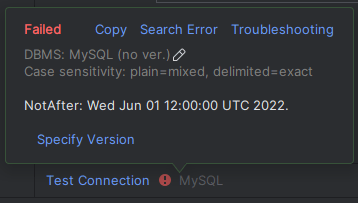
Driver error when connecting to Amazon RDS
The connection fails continuously because the MySQL driver cannot be connected correctly. To check the detailed error message, you need to inspect the DataGrip log messages.
Checking DataGrip Logs
# DataGrip log file
vi ~/AppData/Local/JetBrains/DataGrip/log/idea.log
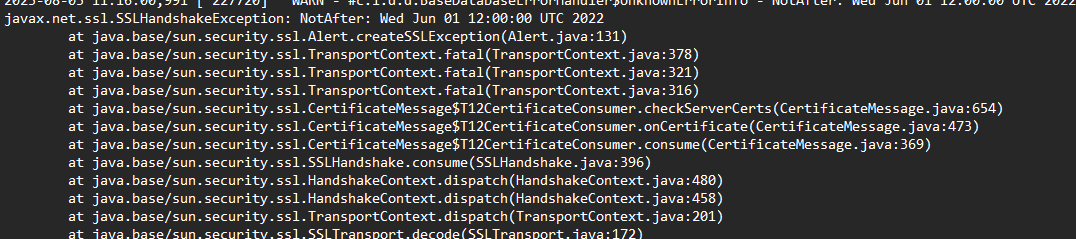
SSLHandshakeException error

Communications link failure
Within the DataGrip log file, you can identify the error by searching for Connecting to: jdbc:mysql://{HOST}:3306 or the host address you attempted to connect to.
Communication errors such as javax.net.ssl.SSLHandshakeException or [08S01] Communications link failure were identified.
It appears there is a problem with the TLS communication process. Personally, I believe this issue arises when the Storage encryption setting is enabled in the Amazon RDS instance configuration.
1. javax.net.ssl.SSLHandshakeException
This error is usually related to SSL/TLS settings and occurs due to authentication issues between the client and the server.
Solution:
- Update JDBC Driver:
- Update the MySQL JDBC driver used in JetBrains DataGrip to the latest version. The latest drivers resolve many issues related to SSL/TLS protocols.
- Check TLS Version:
- The TLS version supported by the Amazon RDS instance must match the TLS version used by the JDBC driver.
- Check the instance settings (TLS version) in the Amazon RDS console and, if necessary, change it to a lower version (e.g., TLS 1.2).
- Configure SSL Certificate:
- Amazon RDS uses SSL certificates by default.
- Download the AWS certificate provided in the RDS console and add it to the DataGrip connection settings.
Example: Add?useSSL=true&requireSSL=trueto the MySQL connection URL.
- Disable SSL Connection:
- In the connection settings, under the Advanced tab, change the
useSSLvalue toFALSE.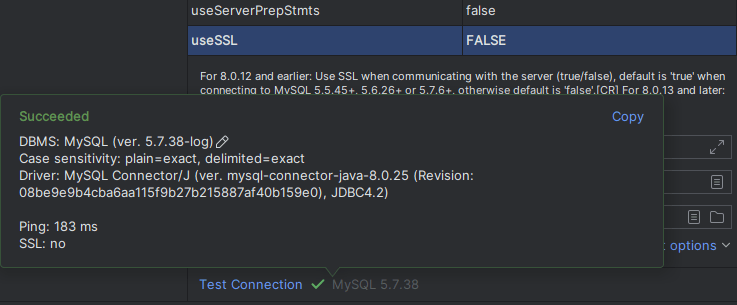
- In the connection settings, under the Advanced tab, change the
2. [08S01] Communications link failure
This error occurs when the client cannot access the Amazon RDS instance due to network connectivity issues.
Solution:
- Check RDS Security Group Settings:
- Verify that the IP address of the client attempting to connect is allowed in the Amazon RDS security group.
Example: Open port 3306 in the security group and add the client’s public IP address.
- Verify that the IP address of the client attempting to connect is allowed in the Amazon RDS security group.
- Check VPC Subnet:
- If Amazon RDS does not allow public access, connections are only possible from within the same VPC.
Ensure that the Amazon RDS instance is using the correct subnet and routing settings.
- If Amazon RDS does not allow public access, connections are only possible from within the same VPC.
- Check DNS and Host:
- Verify that the RDS host name used in the connection URL is correct.
Example: jdbc:mysql://your-instance-name.region.rds.amazonaws.com:3306.
- Verify that the RDS host name used in the connection URL is correct.
While there are easy ways to disable secure connections or deactivate storage encryption, these are not recommended as disabling encryption is generally discouraged. Another possible approach is to use the Amazon Aurora MySQL or MariaDB drivers. However, using the correct driver is advisable for stable operations, so it is best to stick with the recommended methods.
Connection Successful
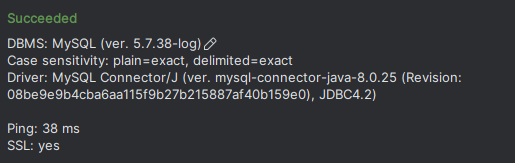
Database connection successful
References
- Amazon RDS - MySQL Community 5.7.38
- DataGrip Log : https://intellij-support.jetbrains.com/hc/en-us/community/posts/10252570443282-Datagrip-cannot-access-containerized-database
- DataGrip DB Connection Error : https://youtrack.jetbrains.com/issue/DBE-13313/Cant-connect-to-remote-MySQL-since-last-version-of-IntelliJ#focus=Comments-27-4921748.0-0