A Complete Guide to Building a Django CI/CD Pipeline with GitHub Actions and Docker
This post was written and edited with AI, then published after operator review. Thumbnails may also be AI-generated.
The era of manual deployment is coming to an end. Processes like uploading files via FTP after code changes, or SSHing into a server to run git pull and restart it, are prone to errors and slow down the entire development cycle. Especially in collaborative environments, it becomes a major obstacle to stable service operation, making it difficult to track who deployed what code and when. To solve these problems, building a CI/CD (Continuous Integration/Continuous Deployment) pipeline is no longer an option, but a necessity.
This post provides an in-depth guide to building a fully automated CI/CD pipeline by combining Django, one of the most widely used web frameworks, with GitHub’s GitHub Actions, the standard for Git hosting services. We will cover everything from testing and Docker image building to deployment on AWS ECR (Elastic Container Registry) and EC2 (Elastic Compute Cloud). Going beyond a simple ‘Hello, World!’ tutorial, this is a practical guide that includes advanced strategies for security, performance optimization, and environment separation that can be immediately applied in a professional setting.
© AI Generated by Imagen 4.0
1. Introduction: Why Your Django Project Needs a GitHub Actions CI/CD Pipeline
As a Django project grows in scale and team size, maintaining code consistency and deployment stability becomes crucial. An environment where tests are automatically run every time a developer pushes code to the main branch, and only code that passes these tests is automatically built and deployed, is a key factor in maximizing development productivity and minimizing human error.
GitHub Actions is a workflow automation tool built into GitHub repositories. Its powerful advantage is the ability to easily define pipelines using YAML files without the need to set up a separate CI/CD server. Furthermore, its seamless integration with Docker allows you to standardize the application’s execution environment as a container image, fundamentally preventing chronic issues like “but it worked on my machine.”
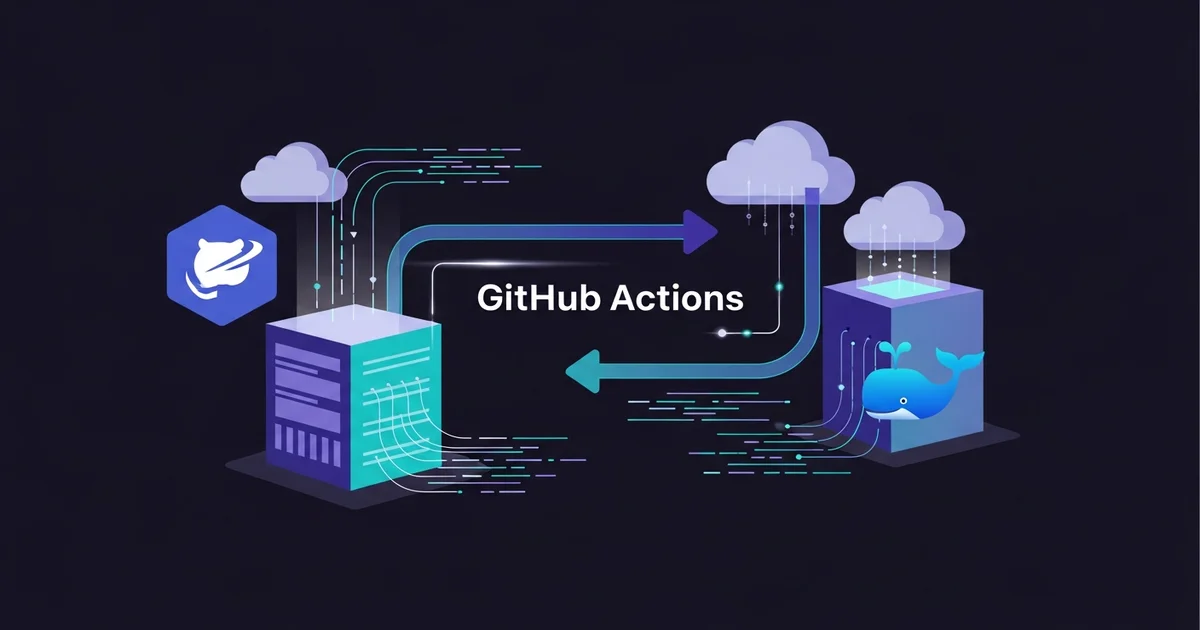
The overall flow of the pipeline we will build in this article is as follows:
- Trigger: A developer pushes or merges code to the
mainbranch. - Test: The GitHub Actions workflow is triggered, performing unit tests and linting for the Django project.
- Build: If the tests pass, a Docker image containing the Django application is built based on the
Dockerfile. - Push: The built image is pushed to AWS ECR (a private Docker image registry) with a version tag.
- Deploy: Connects to the production AWS EC2 instance via SSH, pulls the latest image from ECR, and runs a new container to complete a near-zero-downtime deployment.
2. Core Architecture: Designing the GitHub Actions Workflow
An effective CI/CD pipeline consists of several logically separated stages (Jobs). We will design our workflow with three main Jobs: Test, Build & Push, and Deploy.
testJob: This stage verifies the correctness of the code. If this stage fails, the subsequent build and deploy jobs will not run, preventing code with bugs from being deployed.build-and-pushJob: This job runs only if thetestjob succeeds. It packages the Django application into a Docker image and pushes it to ECR for version control.deployJob: This job runs only if thebuild-and-pushjob succeeds. It connects to the actual production server to deploy the new version of the application.
This structure clarifies the role of each stage and helps to quickly identify where a failure occurred if a problem arises.
Key Concepts of GitHub Actions
Before writing the workflow YAML file, you need to understand these core concepts.
- Workflow: The entire automated process, defined by a YAML file in the
.github/workflows/directory. - Event: A specific activity that triggers a workflow run (e.g.,
push,pull_request). - Job: A workflow is composed of one or more jobs, each running in an independent virtual environment (Runner).
- Step: An individual task unit that makes up a job. It can run shell commands or use pre-built Actions.
- Action: Reusable code that encapsulates complex tasks frequently used in workflows (e.g.,
actions/checkout@v3,aws-actions/configure-aws-credentials@v2).
3. Practical Application: A Deep Dive into the Django CI/CD Workflow YAML
Now, let’s write the actual workflow file. Create a file named main.yml in the .github/workflows/ directory at your project root and fill it with the content below, step by step.
3.1. Basic Workflow Definition and Trigger Configuration
# .github/workflows/main.yml

name: Django CI/CD

on:
  push:
    branches: [ "main" ] # Only runs on push events to the main branch

env:
  AWS_REGION: ap-northeast-2 # The AWS region to use
  ECR_REPOSITORY: my-django-app # The name of the ECR repository you created
name: Specifies the name of the workflow. It will be displayed in the GitHub UI.on.push.branches: Configures the workflow to be triggered by apushevent to themainbranch.env: Defines environment variables that can be used throughout the workflow.
3.2. Implementing the Test Job
The first job runs the Django project’s test suite to verify the stability of the code.
# .github/workflows/main.yml (continued)

jobs:
  test:
    name: Test Django Project
    runs-on: ubuntu-latest
    steps:
      - name: Checkout code
        uses: actions/checkout@v3

      - name: Set up Python
        uses: actions/setup-python@v4
        with:
          python-version: '3.10'

      - name: Install dependencies
        run: |
          python -m pip install --upgrade pip
          pip install -r requirements.txt

      - name: Run tests
        run: |
          python manage.py test
runs-on: ubuntu-latest: Specifies that this job will run on the latest version of the Ubuntu virtual environment.actions/checkout@v3: An Action that checks out your repository’s code onto the Runner.actions/setup-python@v4: Sets up a Python environment with the specified version.Install dependenciesandRun tests: Installs dependency packages usingpipand runs Django’s built-intestcommand.
3.3. The Build & Push Job
Once the test job completes successfully, this job builds the Docker image and pushes it to AWS ECR. This step requires AWS credentials, so we must use GitHub Secrets.
[Prerequisites]
- Create an IAM user for GitHub Actions in AWS and grant it the
AmazonEC2ContainerRegistryFullAccesspermission. - Generate an Access Key ID and Secret Access Key for that user.
- In your GitHub repository, go to
Settings > Secrets and variables > Actionsand register the keys you just generated asAWS_ACCESS_KEY_IDandAWS_SECRET_ACCESS_KEY.
# .github/workflows/main.yml (continued)

  build-and-push:
    name: Build and Push to ECR
    runs-on: ubuntu-latest
    needs: test # Runs only if the 'test' job succeeds

    steps:
      - name: Checkout code
        uses: actions/checkout@v3

      - name: Configure AWS credentials
        uses: aws-actions/configure-aws-credentials@v2
        with:
          aws-access-key-id: ${{ secrets.AWS_ACCESS_KEY_ID }}
          aws-secret-access-key: ${{ secrets.AWS_SECRET_ACCESS_KEY }}
          aws-region: ${{ env.AWS_REGION }}

      - name: Login to Amazon ECR
        id: login-ecr
        uses: aws-actions/amazon-ecr-login@v1

      - name: Set image tag
        id: image-tag
        run: echo "IMAGE_TAG=$(date +%Y%m%d%H%M%S)" >> $GITHUB_ENV

      - name: Build, tag, and push image to Amazon ECR
        env:
          ECR_REGISTRY: ${{ steps.login-ecr.outputs.registry }}
          IMAGE_TAG: ${{ env.IMAGE_TAG }}
        run: |
          docker build -t $ECR_REGISTRY/$ECR_REPOSITORY:$IMAGE_TAG -f Dockerfile .
          docker push $ECR_REGISTRY/$ECR_REPOSITORY:$IMAGE_TAG
needs: test: Specifies that this job depends on thetestjob.aws-actions/configure-aws-credentials@v2: Configures AWS authentication in the Runner environment using the AWS keys stored in GitHub Secrets.aws-actions/amazon-ecr-login@v1: Logs the Docker client into ECR.Set image tag: Creates a unique image tag based on the current timestamp and registers it inGITHUB_ENV.docker buildanddocker push: Builds the image using theDockerfileand pushes it to ECR using the ECR repository address and the generated tag.
3.4. The Automated Deployment (Deploy) Job to EC2
Finally, this job completes the deployment by running the latest image from ECR on the EC2 instance. It uses SSH to execute remote commands.
[Prerequisites]
- Create an SSH key pair to connect to your EC2 instance.
- Add the private key content (the
.pemfile) to GitHub Secrets asEC2_SSH_PRIVATE_KEY. - Add the public IP address or domain of your EC2 instance as a secret named
EC2_HOST, and the SSH username (e.g.,ubuntu,ec2-user) asEC2_USERNAME. - Install Docker and Docker Compose on the EC2 instance beforehand.
- Attach an IAM Role to your EC2 instance so that it can pull images from ECR. (The
AmazonEC2ContainerRegistryReadOnlypermission is sufficient).
# .github/workflows/main.yml (continued)

  deploy:
    name: Deploy to EC2
    runs-on: ubuntu-latest
    needs: build-and-push # Runs only if the 'build-and-push' job succeeds

    steps:
      - name: Get image tag
        id: image-tag
        # A workaround to get the tag created in the previous job.
        # In a real-world scenario, using artifacts or workflow outputs is the proper way.
        # Here, for simplicity, we regenerate the tag using the same logic.
        run: echo "IMAGE_TAG=$(date +%Y%m%d%H%M%S)" >> $GITHUB_ENV

      - name: Deploy to EC2 instance
        uses: appleboy/ssh-action@master
        with:
          host: ${{ secrets.EC2_HOST }}
          username: ${{ secrets.EC2_USERNAME }}
          key: ${{ secrets.EC2_SSH_PRIVATE_KEY }}
          script: |
            # Log in to ECR
            aws ecr get-login-password --region ${{ env.AWS_REGION }} | docker login --username AWS --password-stdin ${{ secrets.AWS_ACCOUNT_ID }}.dkr.ecr.${{ env.AWS_REGION }}.amazonaws.com

            # Set DOCKER_IMAGE environment variable to be used in docker-compose.yml
            export DOCKER_IMAGE=${{ secrets.AWS_ACCOUNT_ID }}.dkr.ecr.${{ env.AWS_REGION }}.amazonaws.com/${{ env.ECR_REPOSITORY }}:${{ env.IMAGE_TAG }}

            # Stop and remove existing containers (if any)
            if [ $(docker ps -q -f name=my-django-container) ]; then
              docker-compose -f /home/ubuntu/my-django-app/docker-compose.yml down
            fi

            # Pull the latest image
            docker pull $DOCKER_IMAGE

            # Change to the directory where docker-compose.yml is located and run it
            cd /home/ubuntu/my-django-app
            docker-compose up -d
appleboy/ssh-action@master: A very useful Action that executes scripts on a remote server via SSH.script: The shell script to be executed on the EC2 instance. It automates the process of logging into ECR, pulling the latest image, and running the container in the background withdocker-compose up -d. Note thatAWS_ACCOUNT_IDmust also be registered as a secret.
4. Performance Optimization and Best Practices
Speeding Up Build Times with Dependency Caching
Running pip install every time a workflow runs is inefficient. You can significantly reduce build times by using actions/cache to save and restore the pip cache.
Example test Job Modification:
      - name: Cache pip dependencies
        uses: actions/cache@v3
        with:
          path: ~/.cache/pip
          key: ${{ runner.os }}-pip-${{ hashFiles('**/requirements.txt') }}
          restore-keys: |
            ${{ runner.os }}-pip-

      - name: Install dependencies
        run: |
          python -m pip install --upgrade pip
          pip install -r requirements.txt
If the contents of requirements.txt haven’t changed, the cached dependencies will be used directly.
Environment Separation (Staging vs. Production)
In a real-world operational environment, it’s safer to separate deployment environments by branch, such as deploying the main branch to production and the develop branch to staging. This can be implemented using GitHub Actions’ if conditionals and environments feature.
on:
  push:
    branches: [ "main", "develop" ]

...
jobs:
...
  deploy-to-staging:
    if: github.ref == 'refs/heads/develop'
    name: Deploy to Staging
    # ... staging server deployment logic ...

  deploy-to-production:
    if: github.ref == 'refs/heads/main'
    name: Deploy to Production
    needs: build-and-push
    environment: production # Use the GitHub Environment feature
    # ... production server deployment logic ...
Using the GitHub environment feature allows for more sophisticated management, such as adding pre-deployment approval steps or setting environment-specific secrets.
5. Conclusion: Maximizing Development Productivity with an Automated Pipeline
We have now explored in detail how to build a CI/CD pipeline that automates the entire process of testing, building, and deploying a Django application using GitHub Actions and Docker. A well-structured pipeline like this provides clear benefits:
- Rapid Deployment: Code changes can be reflected in the production environment within minutes.
- Improved Stability: Automated tests ensure the quality of the code before deployment and prevent errors caused by manual work.
- Enhanced Developer Experience: Developers are freed from the burden of deployment and can focus solely on developing core business logic.
- Increased Visibility: The GitHub Actions UI provides an at-a-glance view of all deployment history, including successes and failures.
By using the YAML code and strategies presented in this guide as a foundation, we hope you can build the optimal CI/CD pipeline for your Django project and achieve both increased development productivity and service stability.