Configuring Swap Memory on Ubuntu 22.04 LTS
On AWS EC2 free-tier or other low-spec hosts, large package installs can exhaust RAM and freeze the machine or trigger OOM kills. Before you resize the instance, a swap file can absorb short memory peaks during install and build work. This guide covers Ubuntu 22.04 LTS setup steps plus when swap helps and when it is the wrong fix.

© Unsplash © Akshar Dave🌻
What swap does
Swap uses part of disk (partition or file) as overflow for RAM pages. The kernel moves cold pages to disk and brings them back when needed. Heavy installs such as Laravel or NestJS, or dependency resolution with npm/composer, often create short memory peaks that a tiny free-tier box cannot hold in RAM alone.
Disk I/O is far slower than RAM. If the host lives in swap, latency will spike. Treat swap as an emergency buffer, not a substitute for memory capacity.
On Google Compute Engine and Amazon EC2, growing RAM usually means stopping the instance and changing type. Unexpected OOM reboots mean downtime until you recover, so dev, toy, and small test nodes often benefit from swap prepared in advance. Production services should usually right-size instances or autoscale instead.
Windows exposes the same idea as virtual memory (page file).
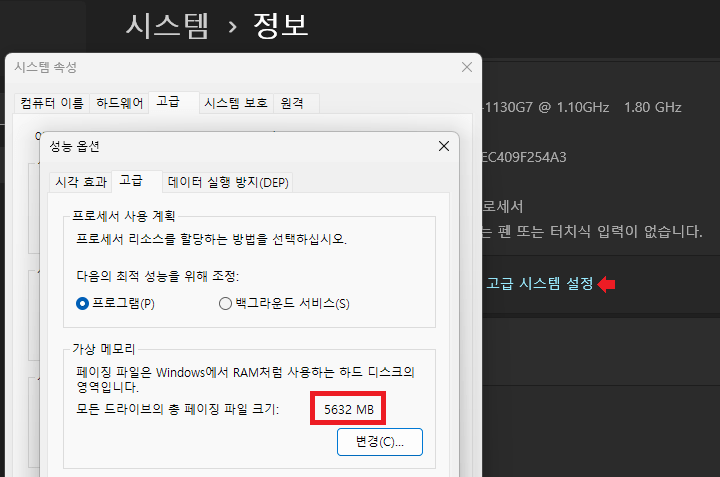
Virtual memory in Windows
Choosing a size
There is no single correct formula, but these starting points work well in practice:
| Physical RAM | Swap starting point | Notes |
|---|---|---|
| 1–2 GB (t2/t3.micro class) | 2–4 GB | Buffer for package installs and light builds |
| 4 GB | 2–4 GB | About 0.5–1× RAM if hibernation is not required |
| 8 GB+ | 1–2 GB or none | Minimum only unless you know you need more |
- Do not create a huge swap file on a nearly full disk.
- If
fallocatefails, usedd(see below). - Examples below use a 4 GB file at
/swapfile. Change the size to match your host.
Setup steps
1. Check current swap
sudo free -m
sudo swapon --show

If the Swap row in free -m is all zeros, swap is missing or inactive.
2. Turn off existing swap (only when resizing)
sudo swapoff -a
3. Create the swap file
sudo fallocate -l 4G /swapfile
If fallocate is unavailable or errors:
sudo dd if=/dev/zero of=/swapfile bs=1M count=4096 status=progress
4. Permissions, format, enable
The file must be readable/writable only by root.
sudo chmod 600 /swapfile
sudo mkswap /swapfile
sudo swapon /swapfile
sudo swapon --show
sudo free -m

5. Persist across reboot (/etc/fstab)
grep -n swapfile /etc/fstab || echo '/swapfile none swap sw 0 0' | sudo tee -a /etc/fstab
Older examples with defaults often still work; the none swap sw 0 0 form matches common Ubuntu guidance for swap entries.

6. Verify
sudo free -m
sudo swapon --show

swappiness and performance
vm.swappiness (0–100) controls how aggressively the kernel uses swap under pressure. Ubuntu Server often defaults near 60.
- Latency-sensitive services / databases: many operators lower it to 10–30.
- Low-spec build-only nodes: the default is often fine.
Temporary:
sudo sysctl vm.swappiness=20
Persistent (/etc/sysctl.d/99-swap.conf):
echo 'vm.swappiness=20' | sudo tee /etc/sysctl.d/99-swap.conf
sudo sysctl --system
Lowering swappiness does not remove OOM risk. If RAM is simply too small, processes still die or crawl.
Production caveats
- Persistent swap thrashing is an incident. Watch
si/sowithvmstat 1and your monitors. - Creating a large swap file on a full root volume can break deploys and logging together.
- Regulated environments may require encrypted swap because page contents can hit disk.
- Orchestrator node swap policies may differ from generic Linux advice—follow the platform guide first.
Disabling swap
sudo swapoff -v /swapfile
sudo sed -i.bak '/swapfile/d' /etc/fstab
sudo rm /swapfile
sudo free -m
After editing /etc/fstab, confirm you have console/serial recovery before rebooting—a typo can prevent boot.
References
- Wikipedia: Virtual memory
- Wikipedia: Paging
- Ubuntu Server docs: Swap