Resolving Package Installation Errors During Node.js Setup on Windows 11
When installing Node.js on Windows 11, you may encounter errors related to additional package installations.
These errors often occur due to the necessity to compile some Node.js packages using C/C++ and Python.
This guide provides detailed solutions to efficiently resolve these issues and ensure a smooth installation process.
One common error arises from the use of chocolatey for installing additional tools.
If visualstudio2019-workload-vctools cannot be installed in the existing chocolatey path, it may result in installation failures.
The installation process involves displaying a CMD screen where the installation proceeds using PowerShell.
Despite several attempts, you might find that a clean installation cannot be achieved.
© Pixabay © CopyrightFreePictures
Why this error happens
The failure is usually not Node itself, but the native build toolchain pulled in for addons. Some npm packages compile with node-gyp when prebuilt binaries are missing. The Windows installer option that auto-installs tools uses Chocolatey and may try to install visualstudio2019-workload-vctools.
Broken Chocolatey state or a mismatched Visual Studio Build Tools workload produces messages like:
visualstudio2019-workload-vctools not installed. the package was not found with the source(s) listed.
Confirm the symptoms
When installing Node.js on Windows 11, you might run into errors related to installing additional packages. These errors often happen because some Node.js packages need to be compiled using C/C++ and Python. I’m writing this guide to help you efficiently solve these problems and ensure a smooth installation process.
One common error occurs when using chocolatey to install additional tools.
If visualstudio2019-workload-vctools can’t be installed in the existing Chocolatey path, the installation may fail.
visualstudio2019-workload-vctools not installed. the package was not found with the source(s) listed.
If you received a message like the one above regarding an additional package installation error while installing Node.js on Windows 11, here is the solution. This article aims to provide clear, actionable solutions for common problems that both beginners and experienced developers face during the installation process.
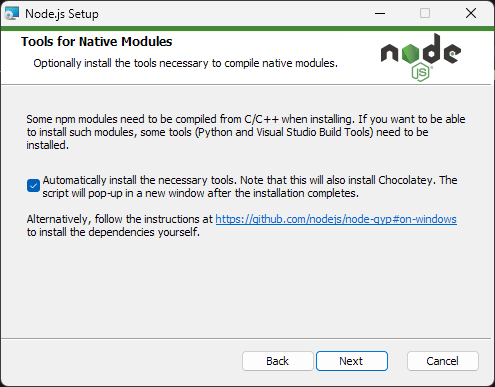
Installing necessary tools during Node.js setup
During the Node.js installation, as shown above, there is an option to help you install additional required tools. If you proceed, the installation should normally complete successfully.
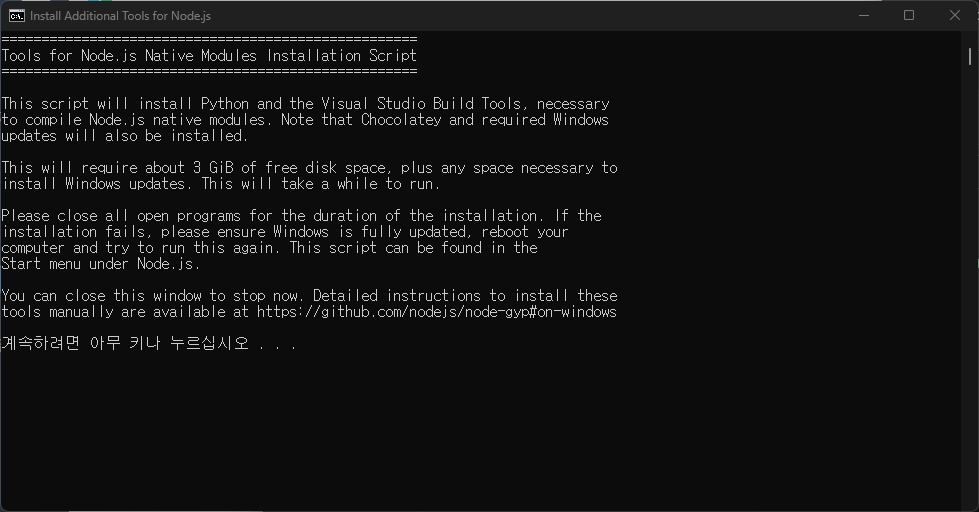
Installing necessary tools
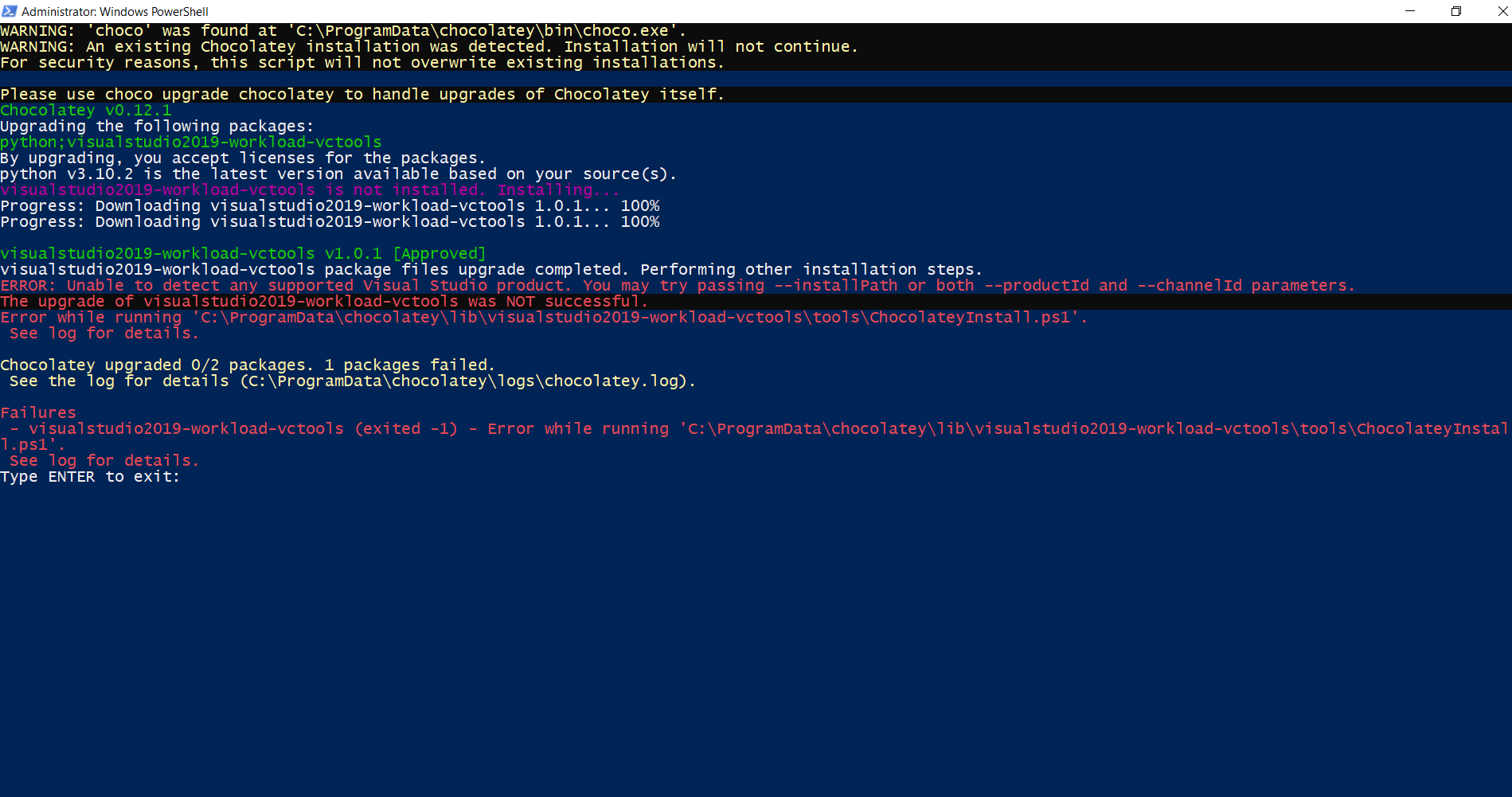
Error during installation
A CMD window appears to install the additional tools required for Node.js, and the installation proceeds using PowerShell. During the installation, an error like the one above is displayed, and a clean installation fails no matter how many times you retry.
1. Reinstall Chocolatey
- Navigate to the
C:\ProgramData\chocolateydirectory and delete it. Reinstalling Node.js will also reinstall Chocolatey and the necessary tools.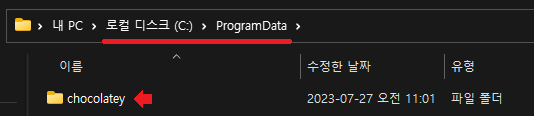
2. Install Visual Studio Build Tools
- Download and install the latest version of Build Tools for Visual Studio 2019.
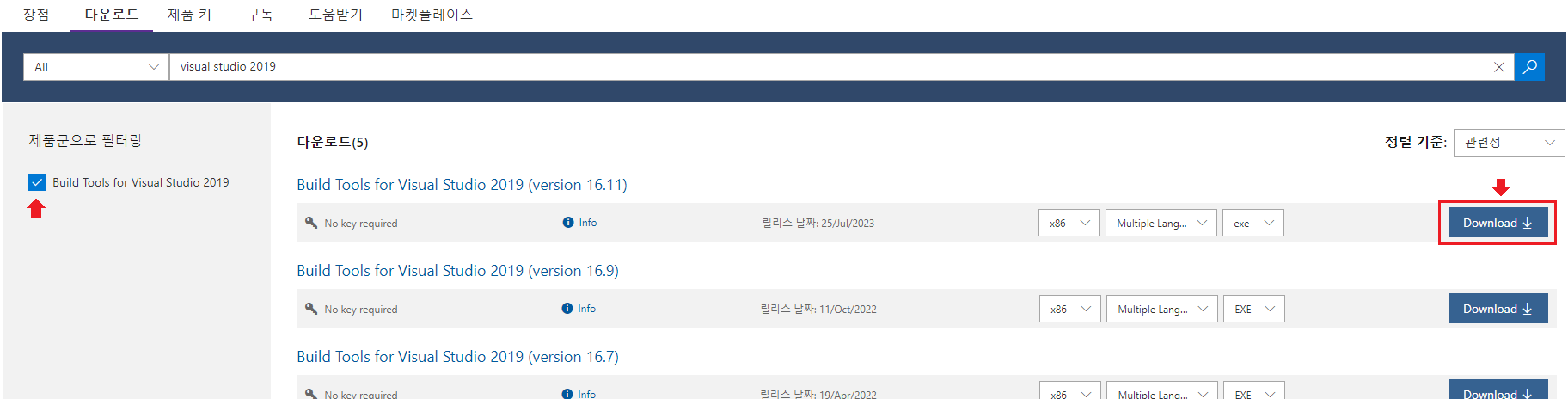
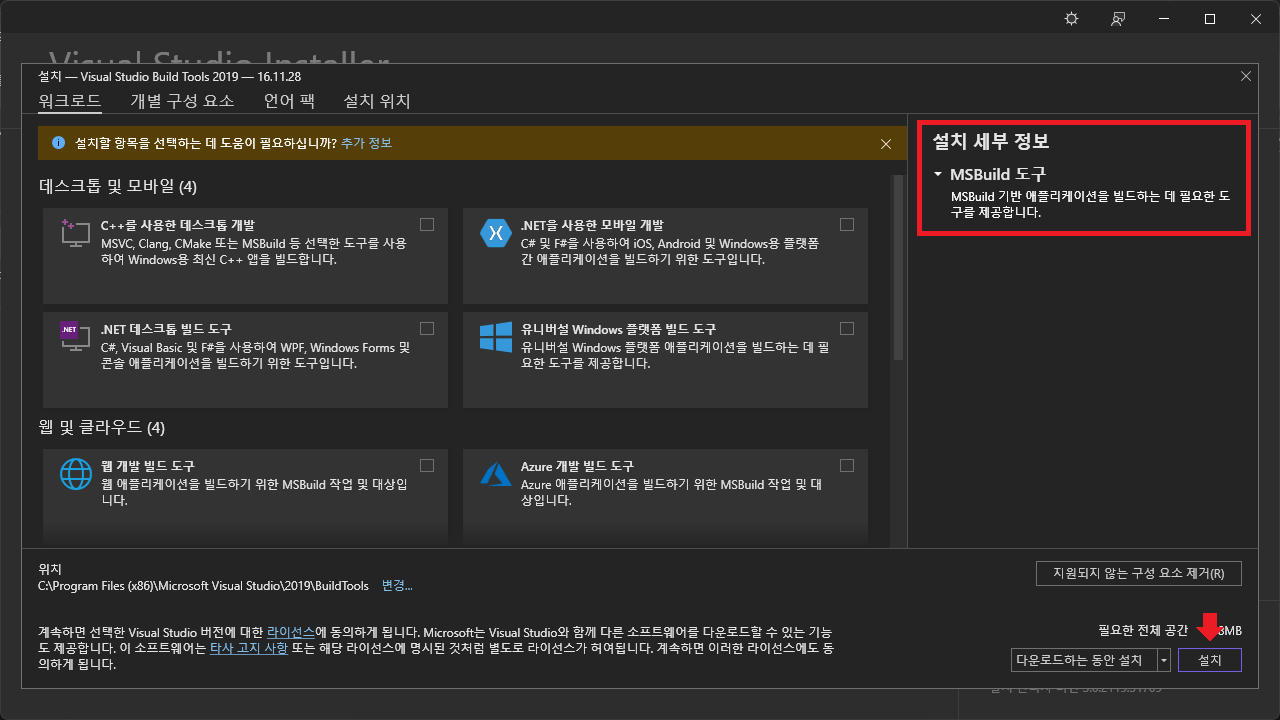
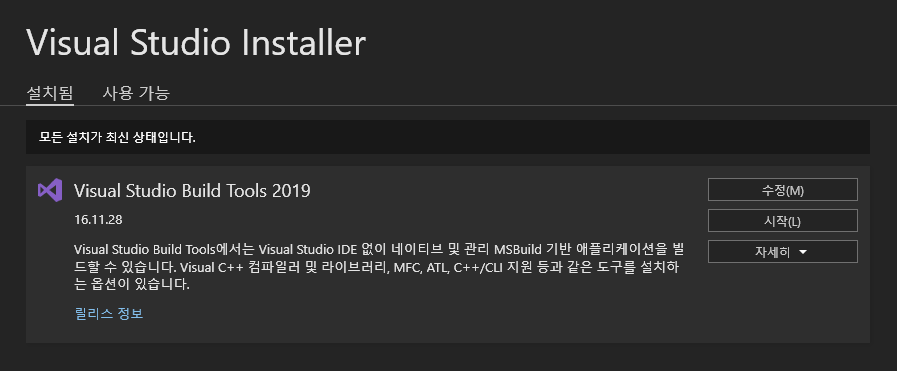
- Once the installation is complete, run the following command to upgrade
visualstudio2019-workload-vctools:choco upgrade visualstudio2019-workload-vctools -y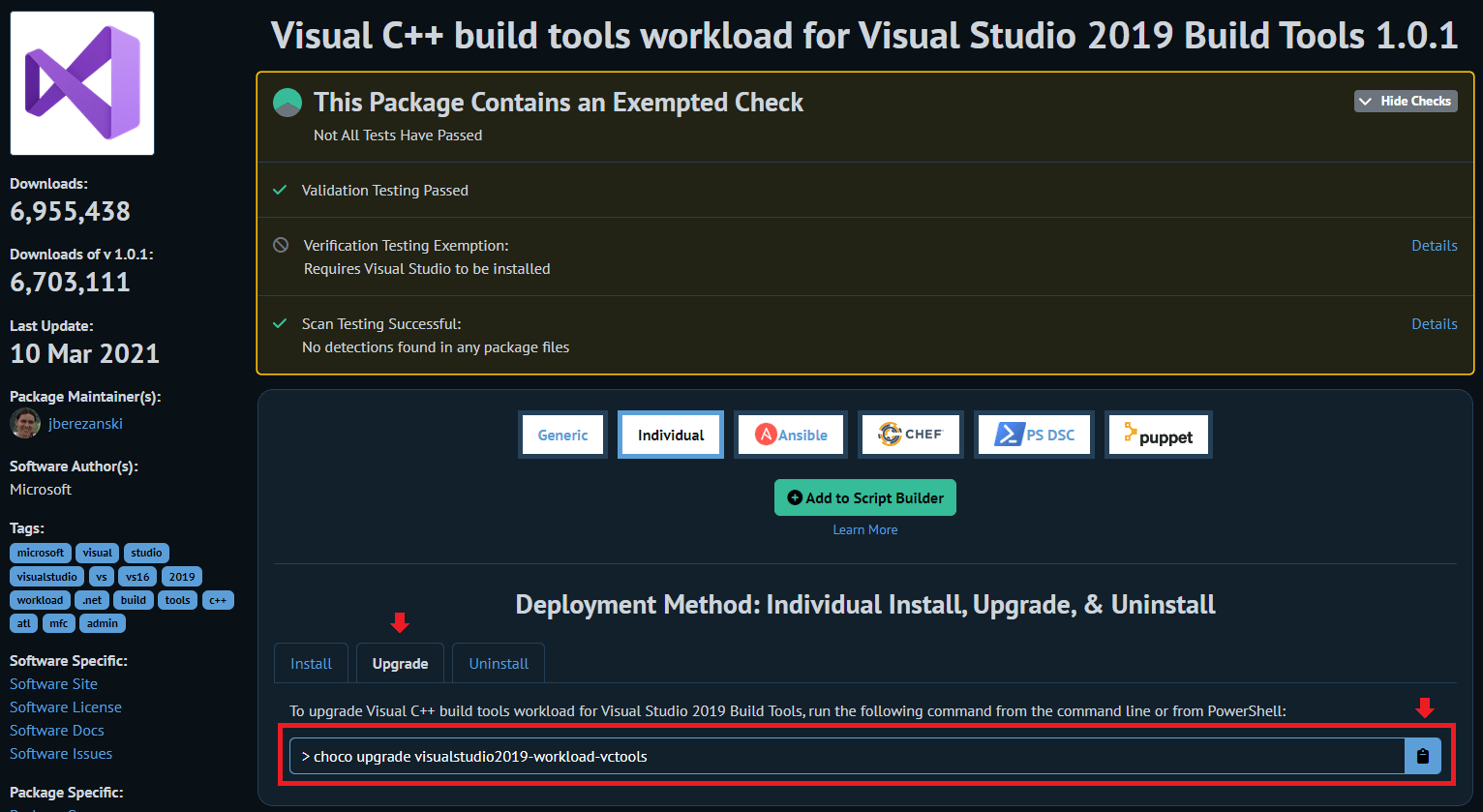
Installation Complete
You have now completed the installation of Node.js and the necessary packages! Your development environment is now ready.
Here are some additional steps to verify your setup:
- Check the Node.js Version:
To verify that the installation was successful, run the following command:# This command allows you to check the versions of Node.js and npm. node -v npm -v - Create a Basic Project:
To confirm that Node.js is installed correctly, you can create a simple project. Navigate to your desired directory and run the following commands:# These commands create a new project directory and initialize it with default package settings. mkdir my-node-project cd my-node-project npm init -y - Install Essential Packages:
Try installing some basic packages for your project. For example, to install Express, run the following command:# This command installs the Express package, which you can use to build a server. npm install express - Other Configurations:
If you need any other configurations or packages, it’s a good idea to install them now. Install any additional packages required by your project and finalize your environment setup.
Node.js and the necessary tools are now installed and configured on Windows 11. You are ready to start developing. Happy coding!
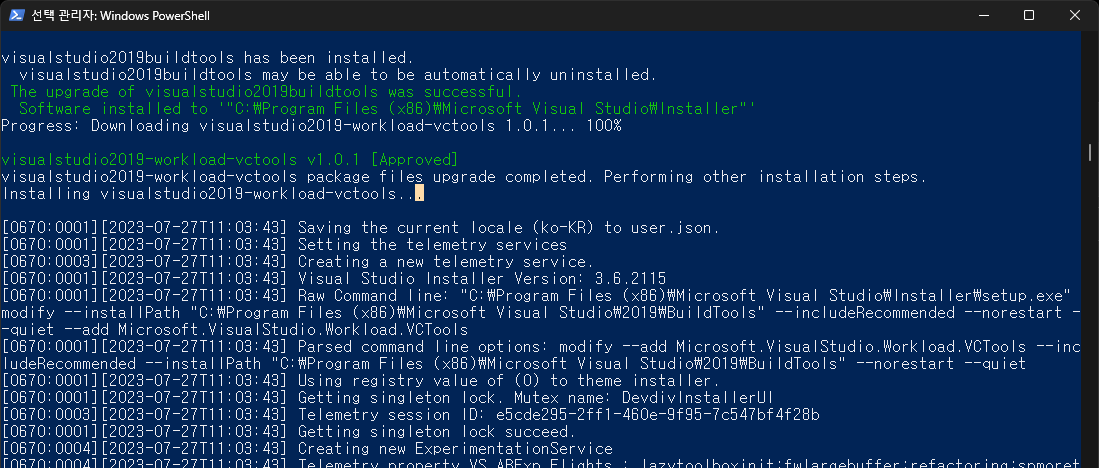
Installation complete
Prevention checklist
- Run Chocolatey and Build Tools steps from an elevated shell.
- After install, smoke-test with
node -v,npm -v, and one native-dependent package. - On managed PCs, check whether policy blocks VS Build Tools.
- Standardize on Node LTS via the official installer or a version manager (
nvm-windows,fnm). - In CI, prefer images with Build Tools cached, or avoid native builds when possible.
Alternative paths
- Install Visual Studio Build Tools first without Chocolatey, then reinstall Node
- Align node-gyp with
npm config set msvs_version 2019(or your installed year) - Use Node inside WSL2 Ubuntu when Windows-native modules are not required